> ## Documentation Index
> Fetch the complete documentation index at: https://aegean.ai/llms.txt
> Use this file to discover all available pages before exploring further.
# Adding objects to the Gazebo simulation world
> How to download and insert 3D models into your Gazebo environment
This guide explains how to add 3D objects from the [Gazebo Fuel model database](https://app.gazebosim.org/OpenRobotics/fuel/models/) into your TurtleBot Maze simulation environment.
## Download models
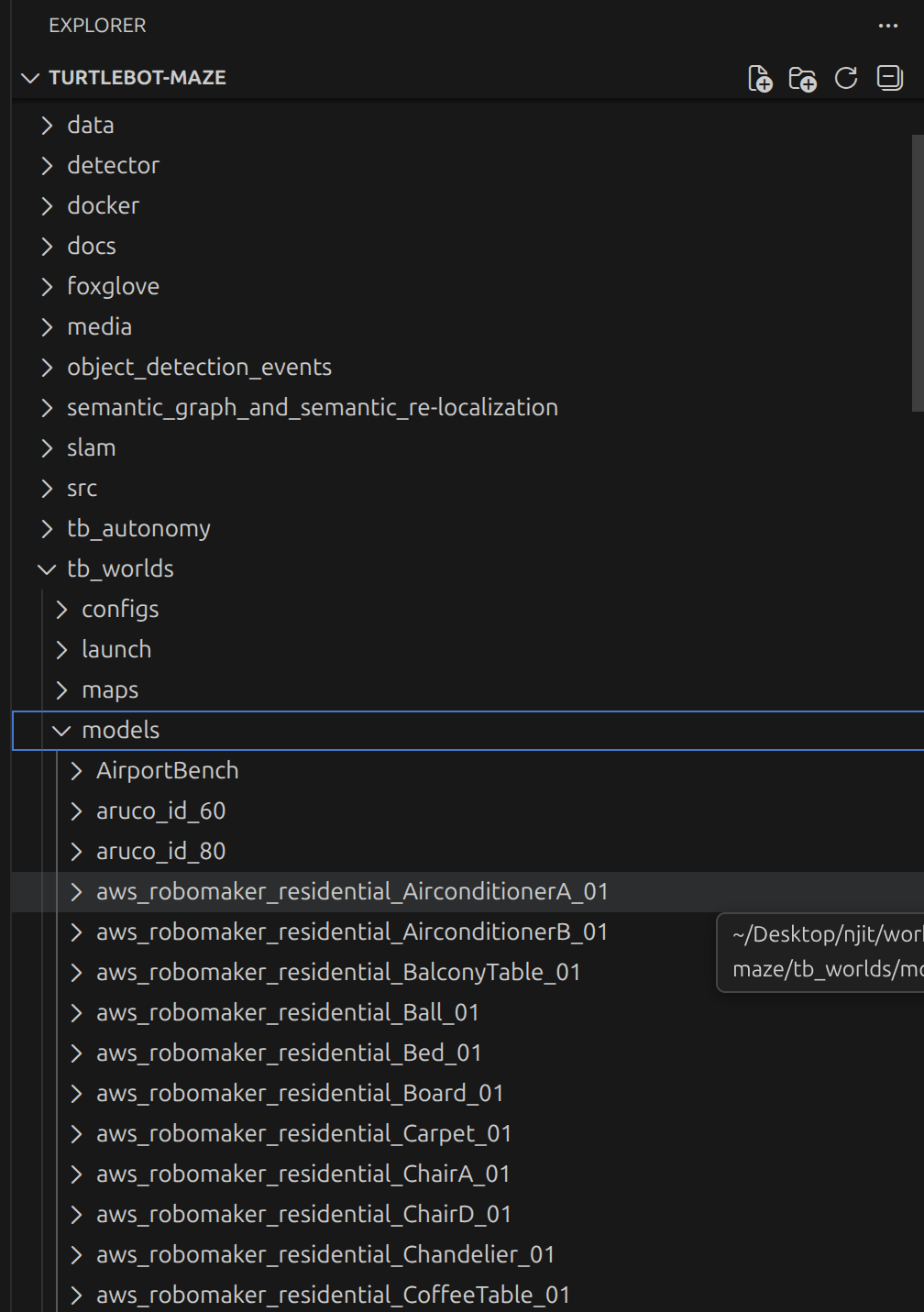
Browse and download models from the Gazebo Fuel database. Place downloaded model folders into the `models` directory of your workspace:
 ## Edit the world file
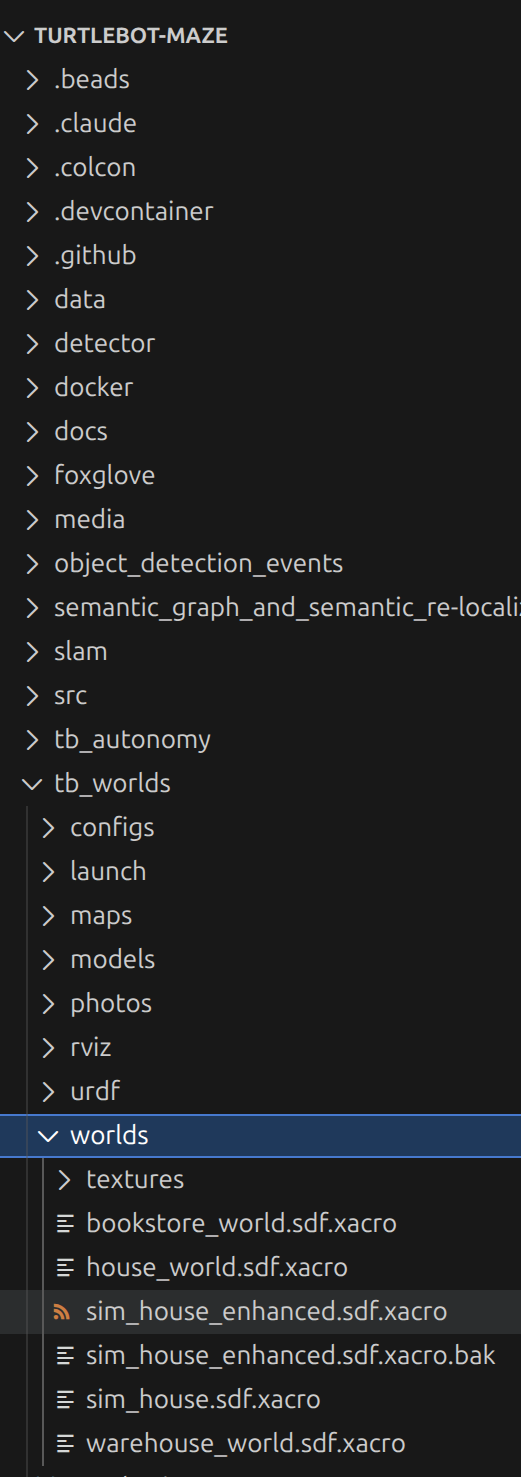
Manually edit the `sim_house_enhanced.sdf.xacro` file located at:
```
tb_worlds/worlds/sim_house_enhanced.sdf.xacro
```
## Edit the world file
Manually edit the `sim_house_enhanced.sdf.xacro` file located at:
```
tb_worlds/worlds/sim_house_enhanced.sdf.xacro
```
 ## Insert objects into the world
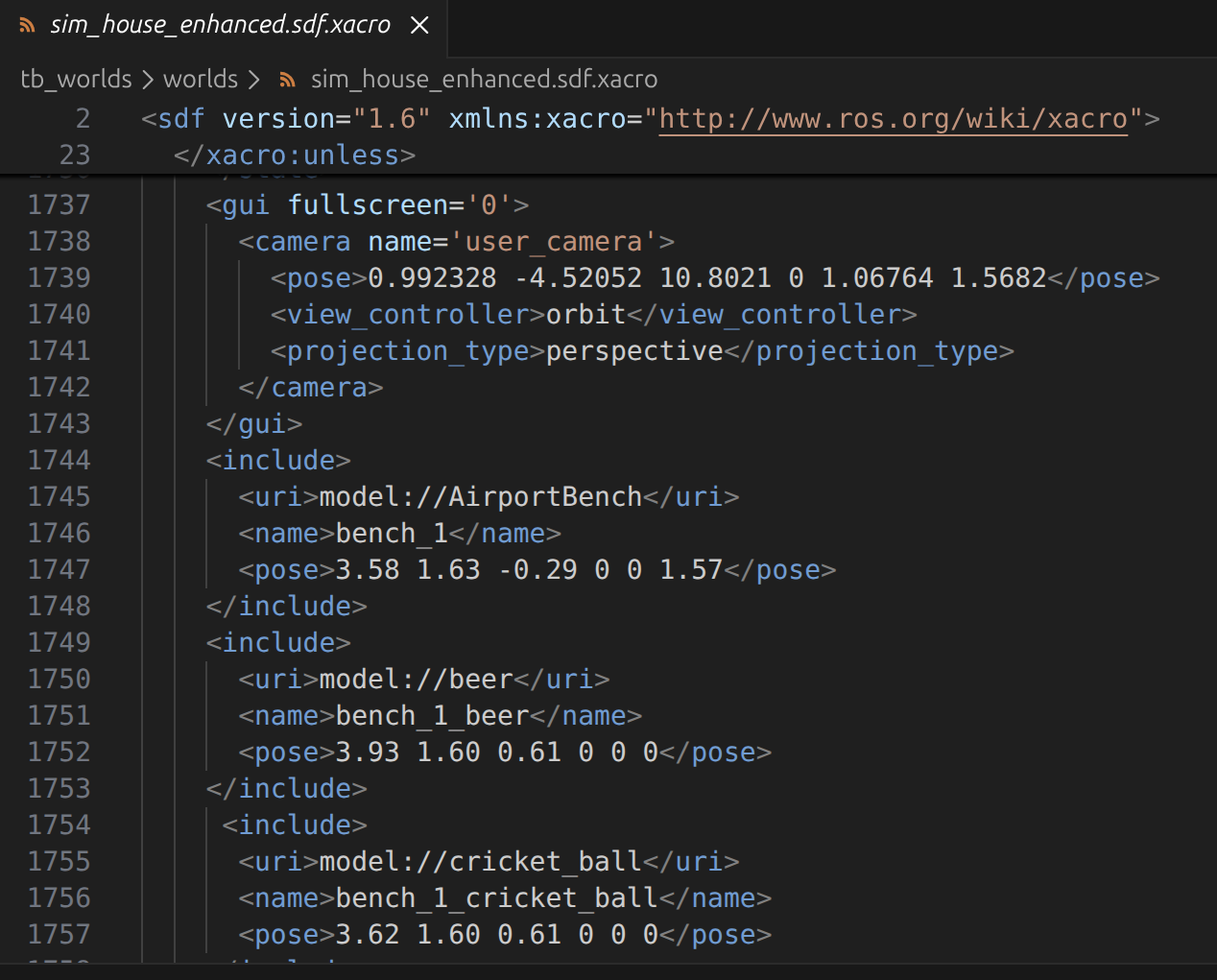
Add `` blocks to the SDF file for each object you want to place. Each object needs:
* A `` pointing to the model (e.g., `model://AirportBench`)
* A unique `` (duplicate names cause errors)
* A `` specifying position (`x y z roll pitch yaw`)
## Insert objects into the world
Add `` blocks to the SDF file for each object you want to place. Each object needs:
* A `` pointing to the model (e.g., `model://AirportBench`)
* A unique `` (duplicate names cause errors)
* A `` specifying position (`x y z roll pitch yaw`)
 **Positioning tips:**
* Benches are inserted at `z = -0.29` to make them low enough to be visible
* Adjust the `z` coordinate so objects are at a sufficient height to be seen by the robot's camera
* Every object must have a unique name or the simulator will throw an error
## Model folder structure
Each downloaded model must have the correct directory structure inside the `models` folder:
**Positioning tips:**
* Benches are inserted at `z = -0.29` to make them low enough to be visible
* Adjust the `z` coordinate so objects are at a sufficient height to be seen by the robot's camera
* Every object must have a unique name or the simulator will throw an error
## Model folder structure
Each downloaded model must have the correct directory structure inside the `models` folder:
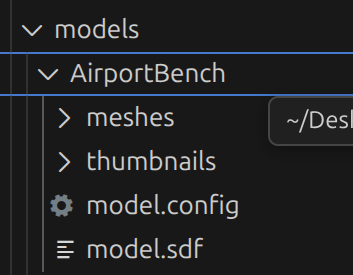 A valid model folder contains:
* `meshes/`, 3D mesh files
* `thumbnails/`, preview images
* `model.config`, model metadata
* `model.sdf`, model definition
Some models from the Fuel database may not be compatible with your Gazebo version. If a model fails to load, try a different one from the database rather than spending time debugging compatibility issues.
***
[Edit this page on GitHub](https://github.com/aegean-ai/eaia/edit/main/src/blog/tutorials/gazebo-objects-guide/index.mdx) or [file an issue](https://github.com/aegean-ai/eaia/issues/new/choose).
A valid model folder contains:
* `meshes/`, 3D mesh files
* `thumbnails/`, preview images
* `model.config`, model metadata
* `model.sdf`, model definition
Some models from the Fuel database may not be compatible with your Gazebo version. If a model fails to load, try a different one from the database rather than spending time debugging compatibility issues.
***
[Edit this page on GitHub](https://github.com/aegean-ai/eaia/edit/main/src/blog/tutorials/gazebo-objects-guide/index.mdx) or [file an issue](https://github.com/aegean-ai/eaia/issues/new/choose).