

Download models
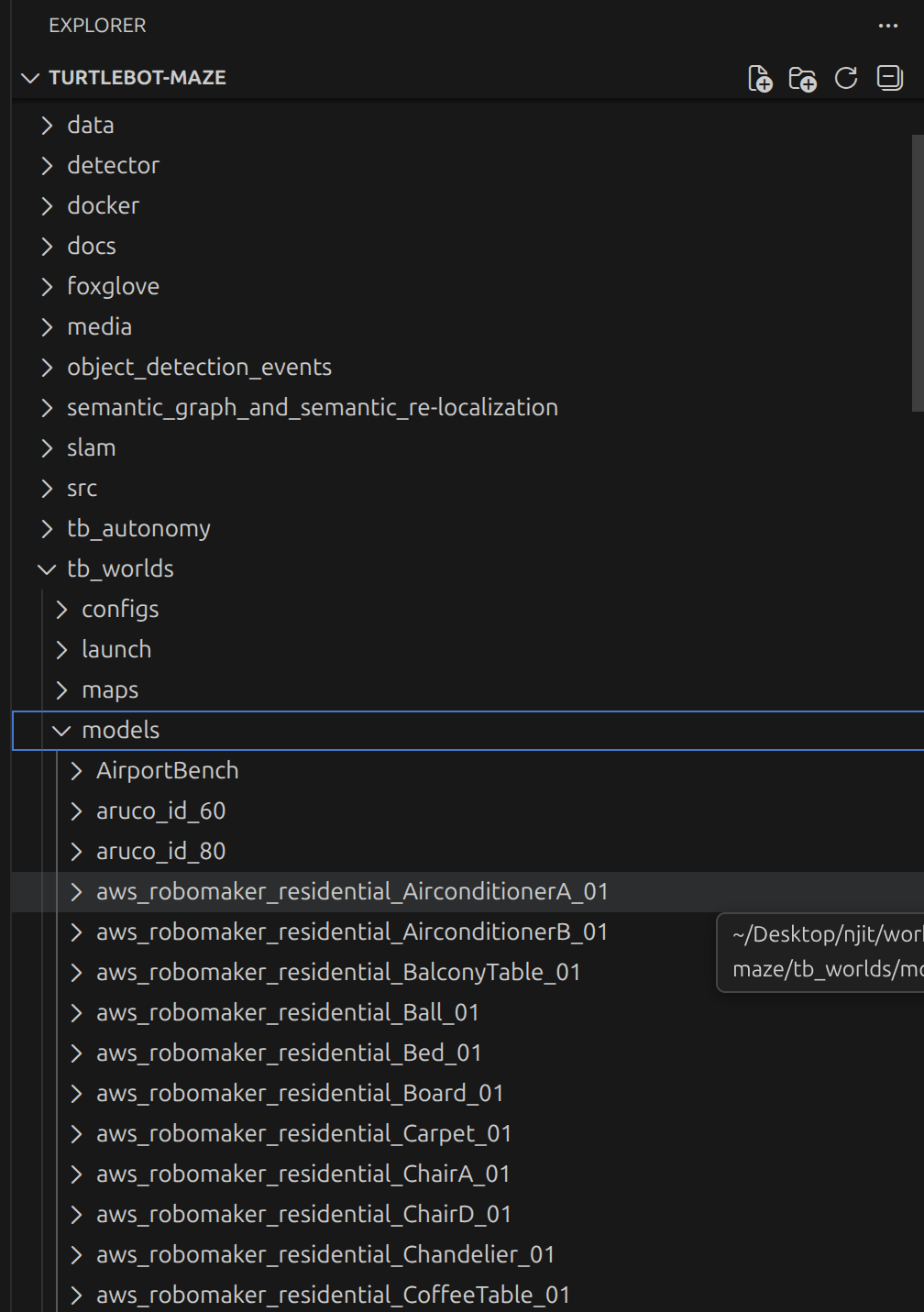
Browse and download models from the Gazebo Fuel database. Place downloaded model folders into themodels directory of your workspace:
Edit the world file
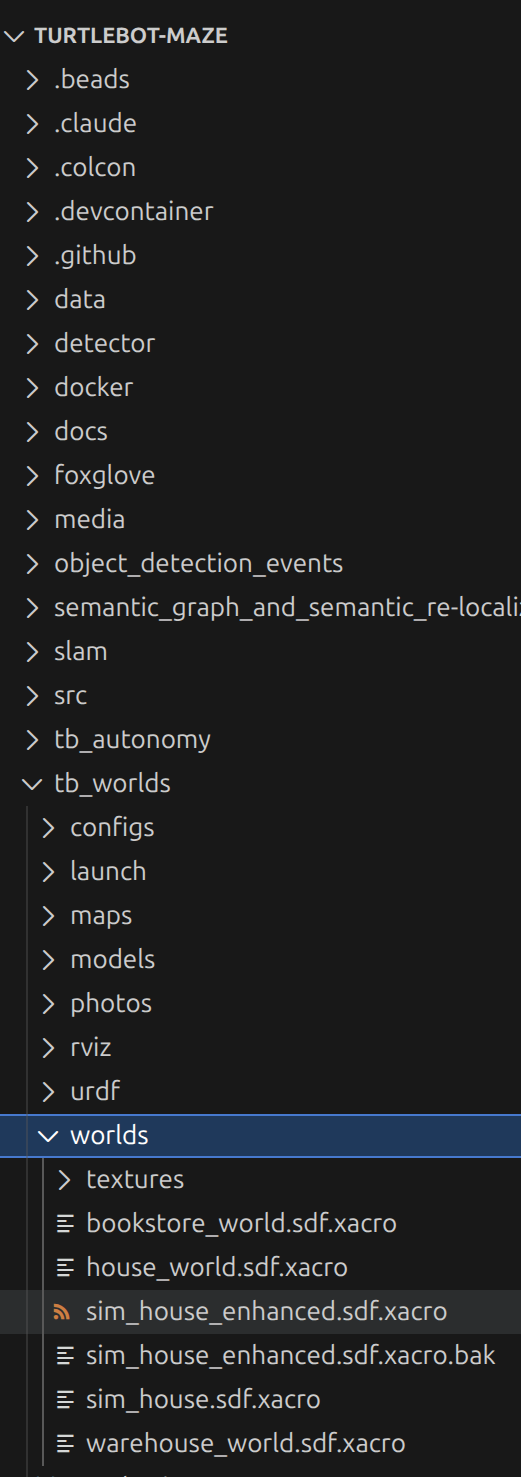
Manually edit thesim_house_enhanced.sdf.xacro file located at:
Insert objects into the world
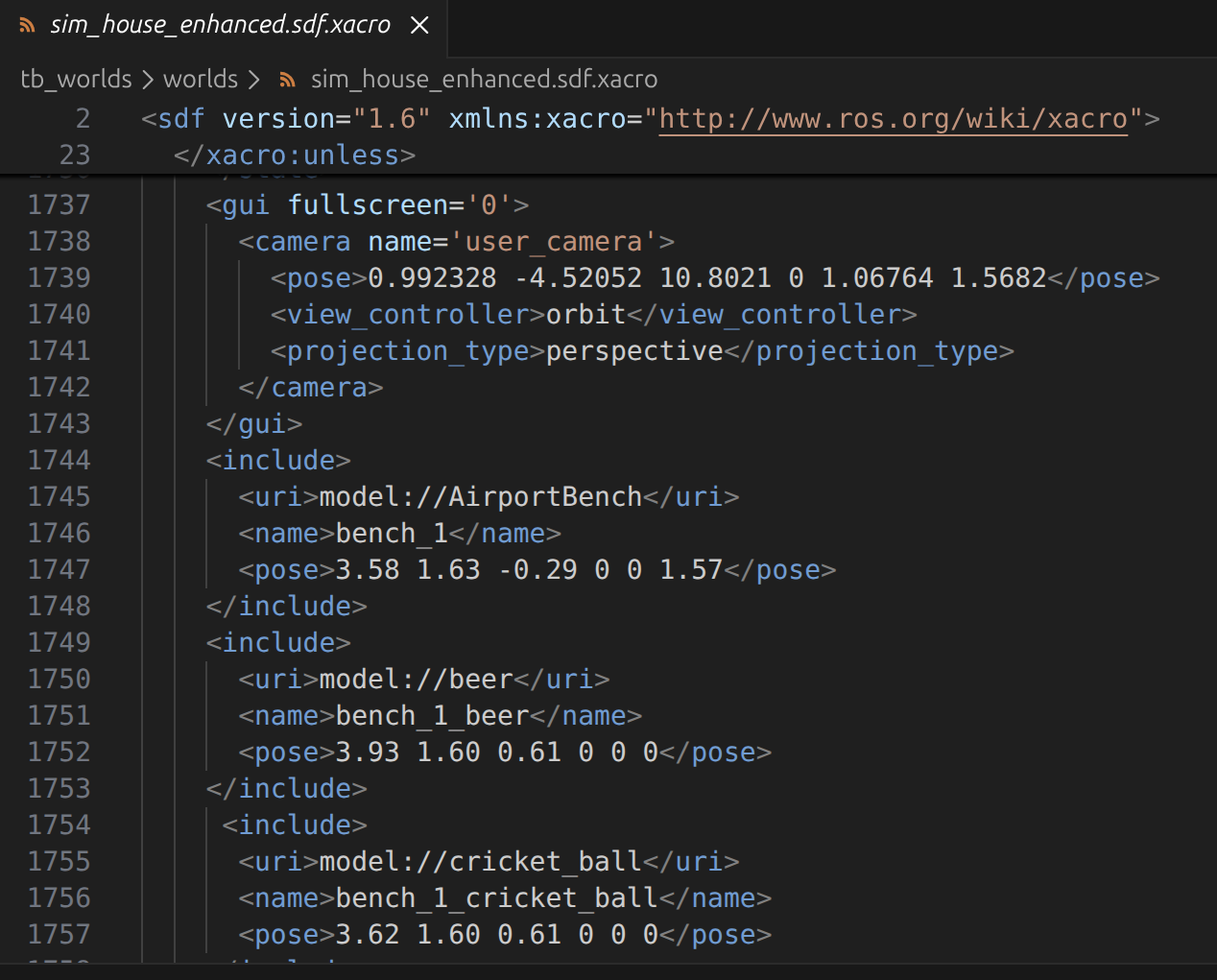
Add<include> blocks to the SDF file for each object you want to place. Each object needs:
- A
<uri>pointing to the model (e.g.,model://AirportBench) - A unique
<name>(duplicate names cause errors) - A
<pose>specifying position (x y z roll pitch yaw)
- Benches are inserted at
z = -0.29to make them low enough to be visible - Adjust the
zcoordinate so objects are at a sufficient height to be seen by the robot’s camera - Every object must have a unique name or the simulator will throw an error
Model folder structure
Each downloaded model must have the correct directory structure inside themodels folder:
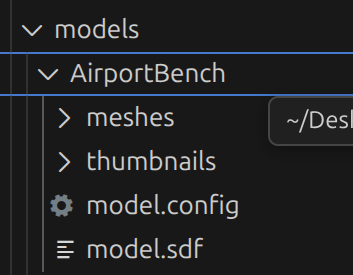
meshes/, 3D mesh filesthumbnails/, preview imagesmodel.config, model metadatamodel.sdf, model definition
Some models from the Fuel database may not be compatible with your Gazebo version. If a model fails to load, try a different one from the database rather than spending time debugging compatibility issues.
Found an error on this page? Report an issue.